How to Process POS Refunds, Returns, and Customer Adjustments in Invent ERP
Learn how to issue refunds, process returned items, and maintain accurate financial and inventory records.
Step-by-Step Process
Method 1: Refund from an Active POS Session
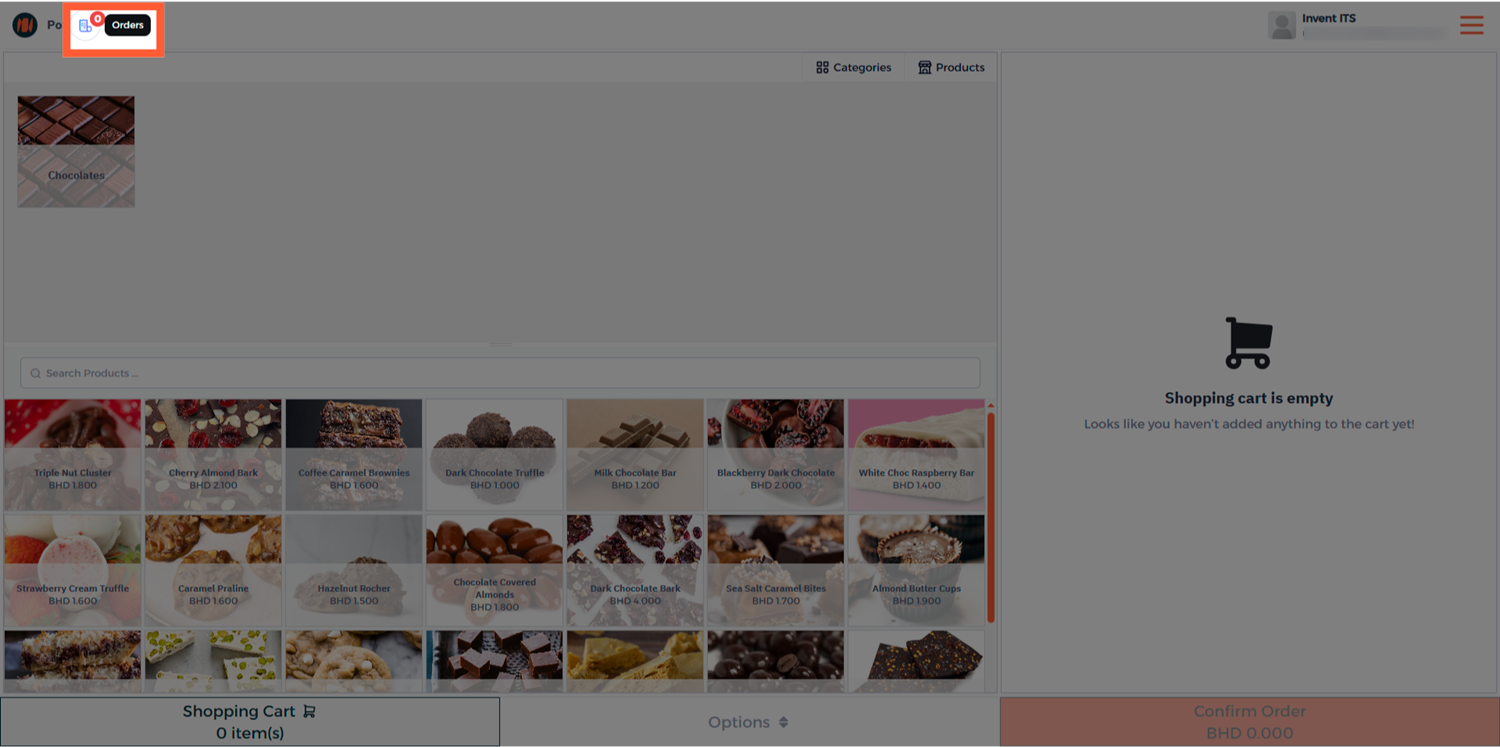
Step 1: Open POS Orders
From the Point of Sale session, head to the Orders to view all completed transactions.
Step 2: Select the Order to Refund
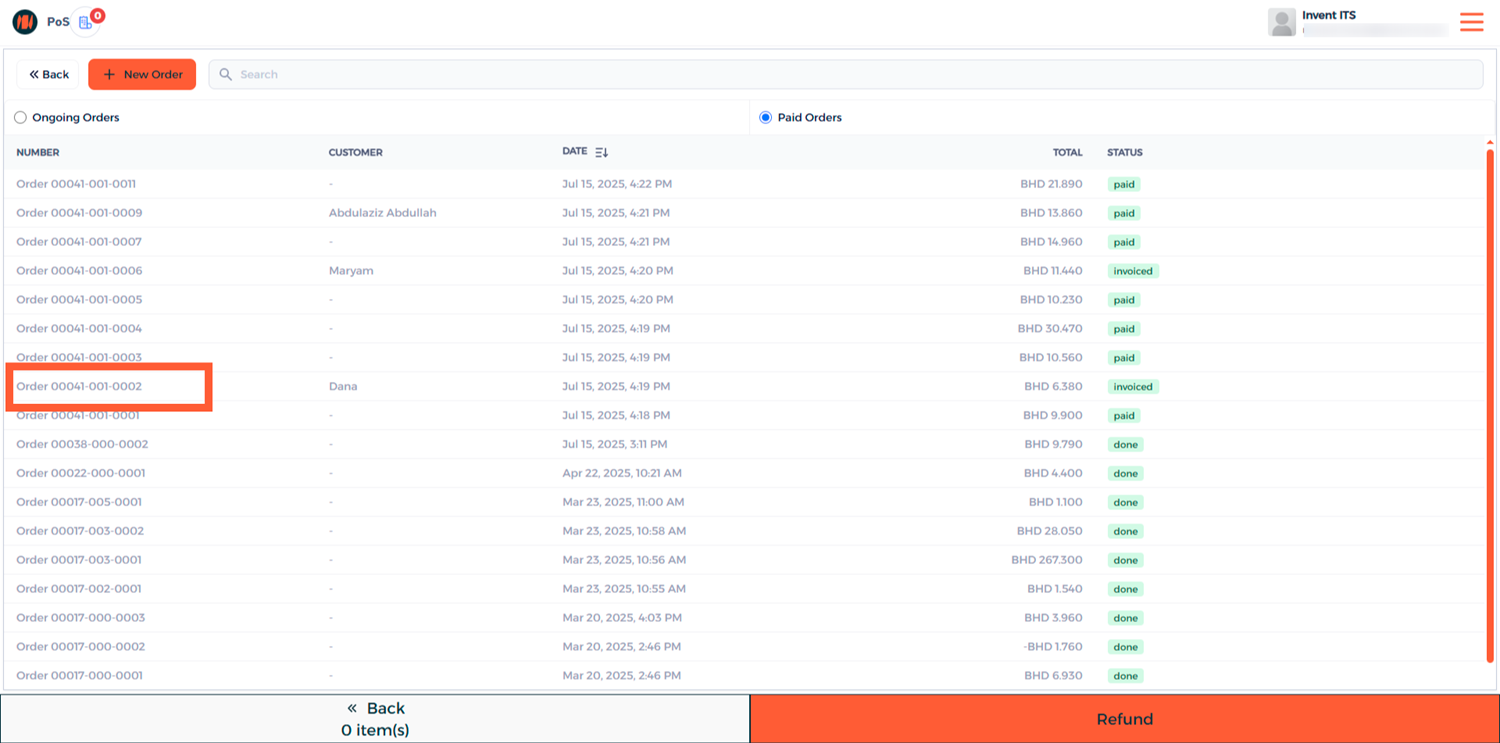
Choose the paid order you want to refund and open it.
Step 3: Select Items and Quantities
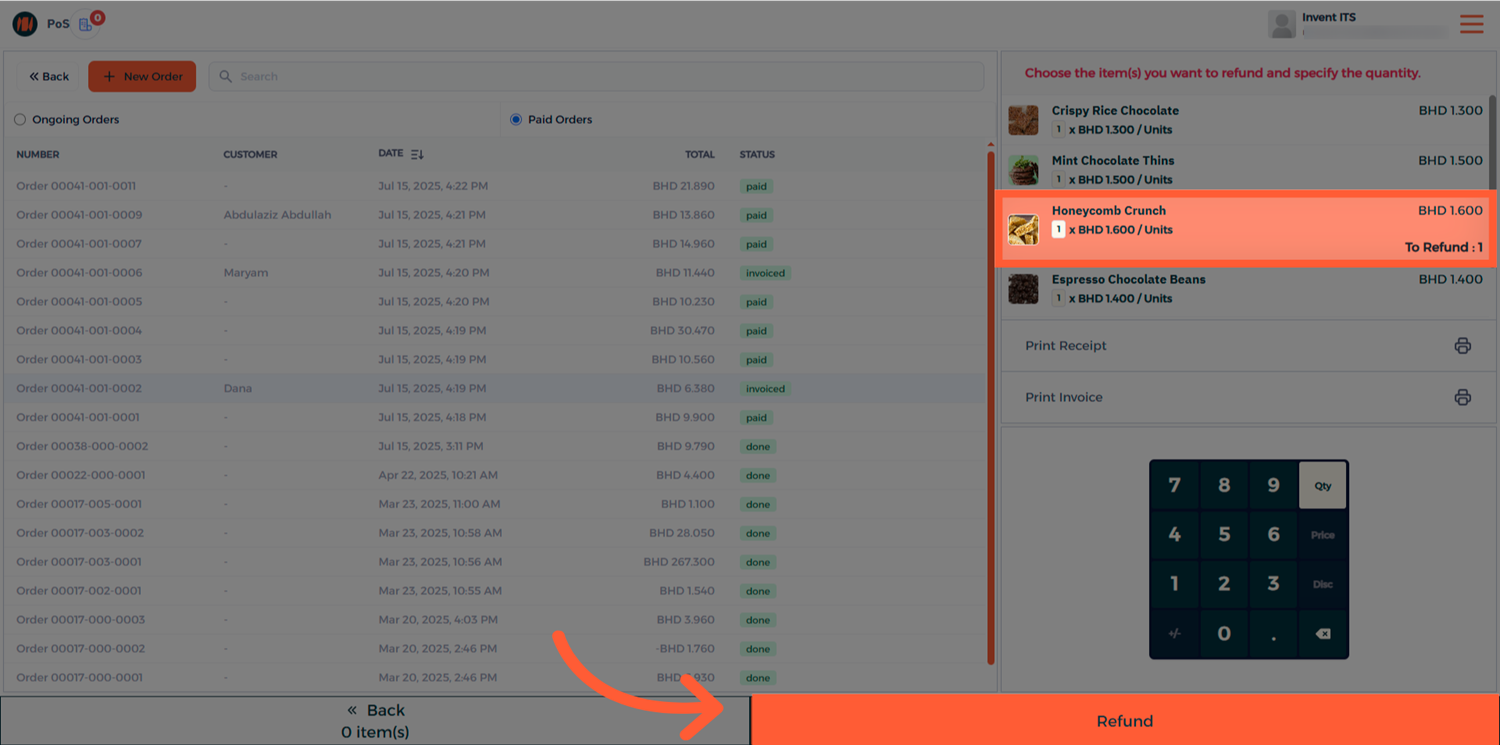
Select the items you wish to refund and adjust the quantity.
Step 4: Process the Refund Payment
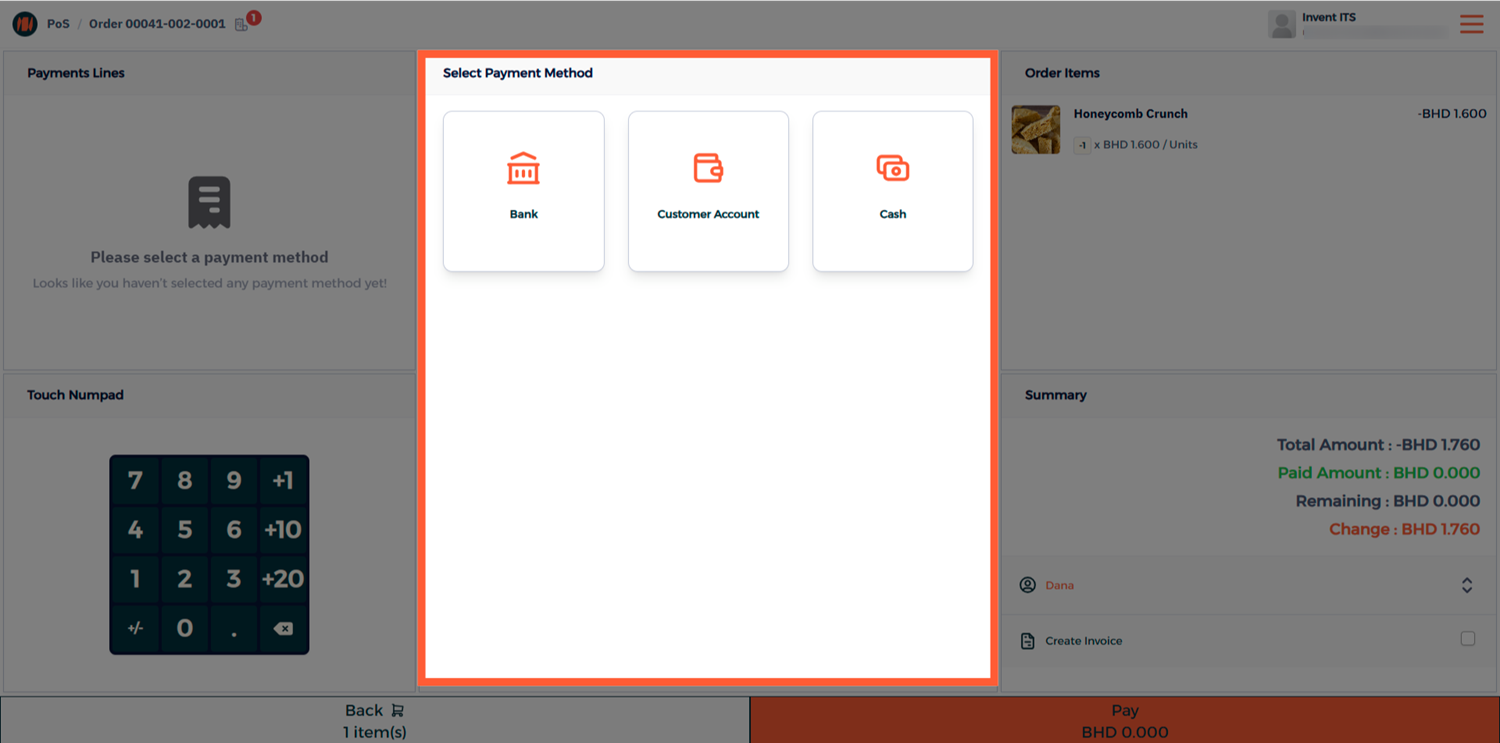
Choose the payment method to use for the refund and complete the transaction.
Method 2: Refund from POS Orders List
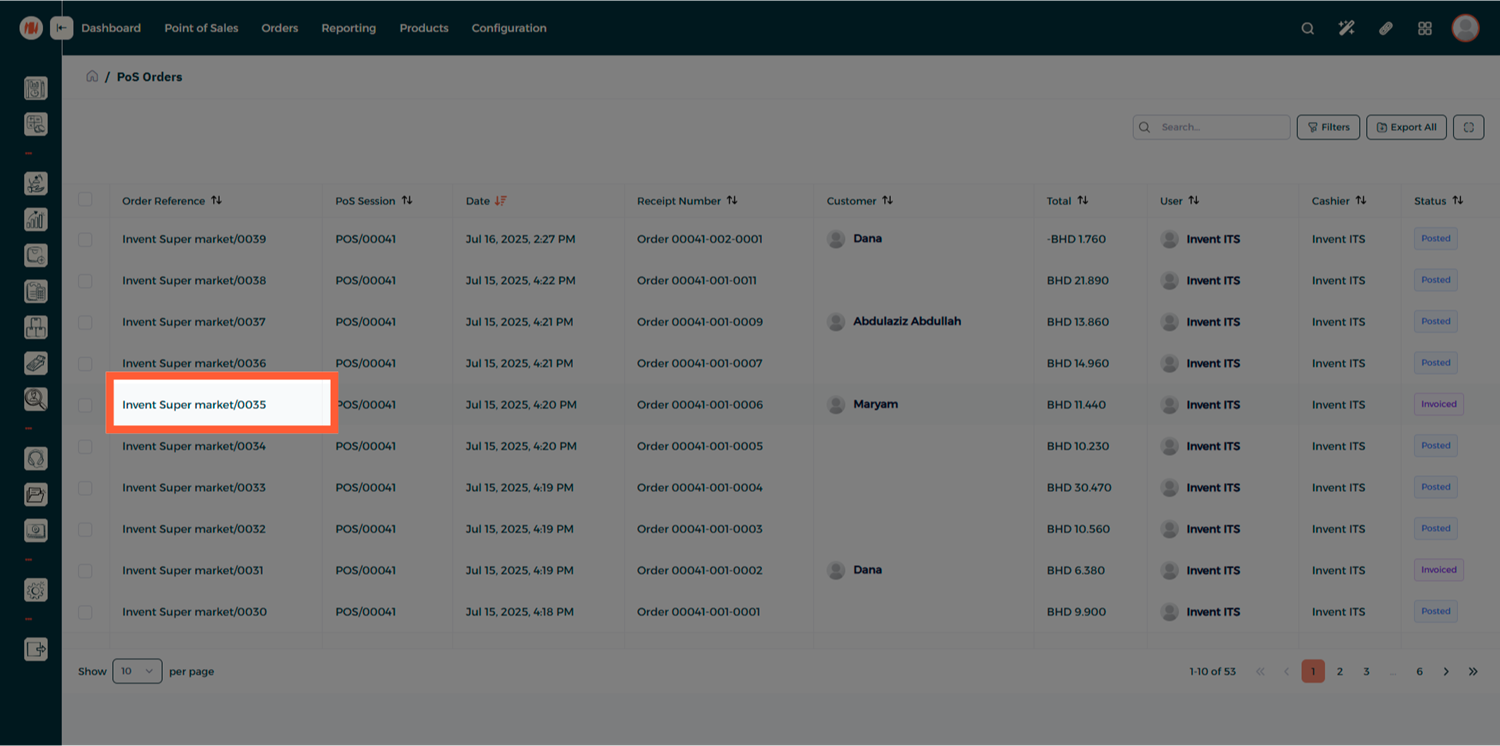
Step 1: Open POS Orders
From your POS Orders list, locate and open the order you want to refund.
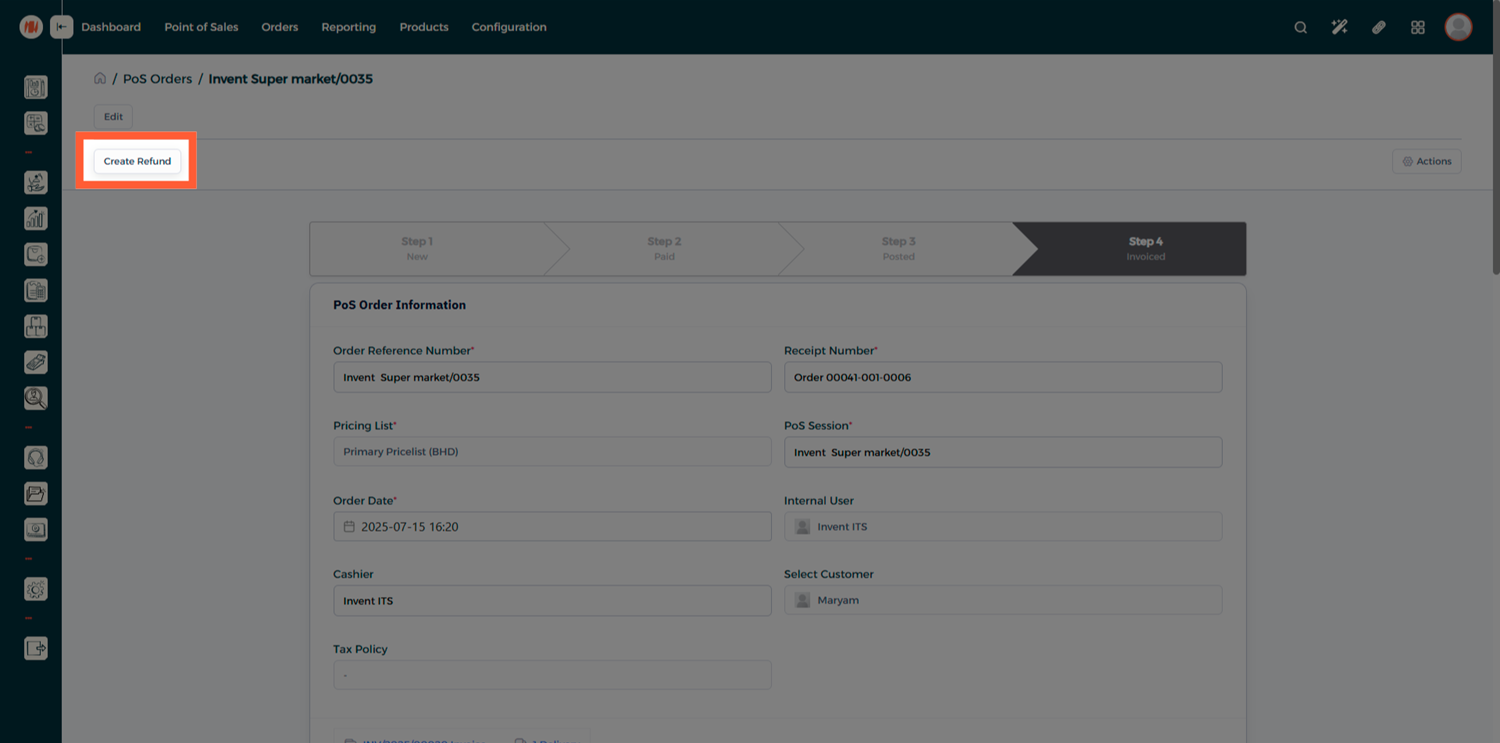
Step 2: Create a Refund
Click on Create Refund - the system will generate a new refund order linked to the original sale.
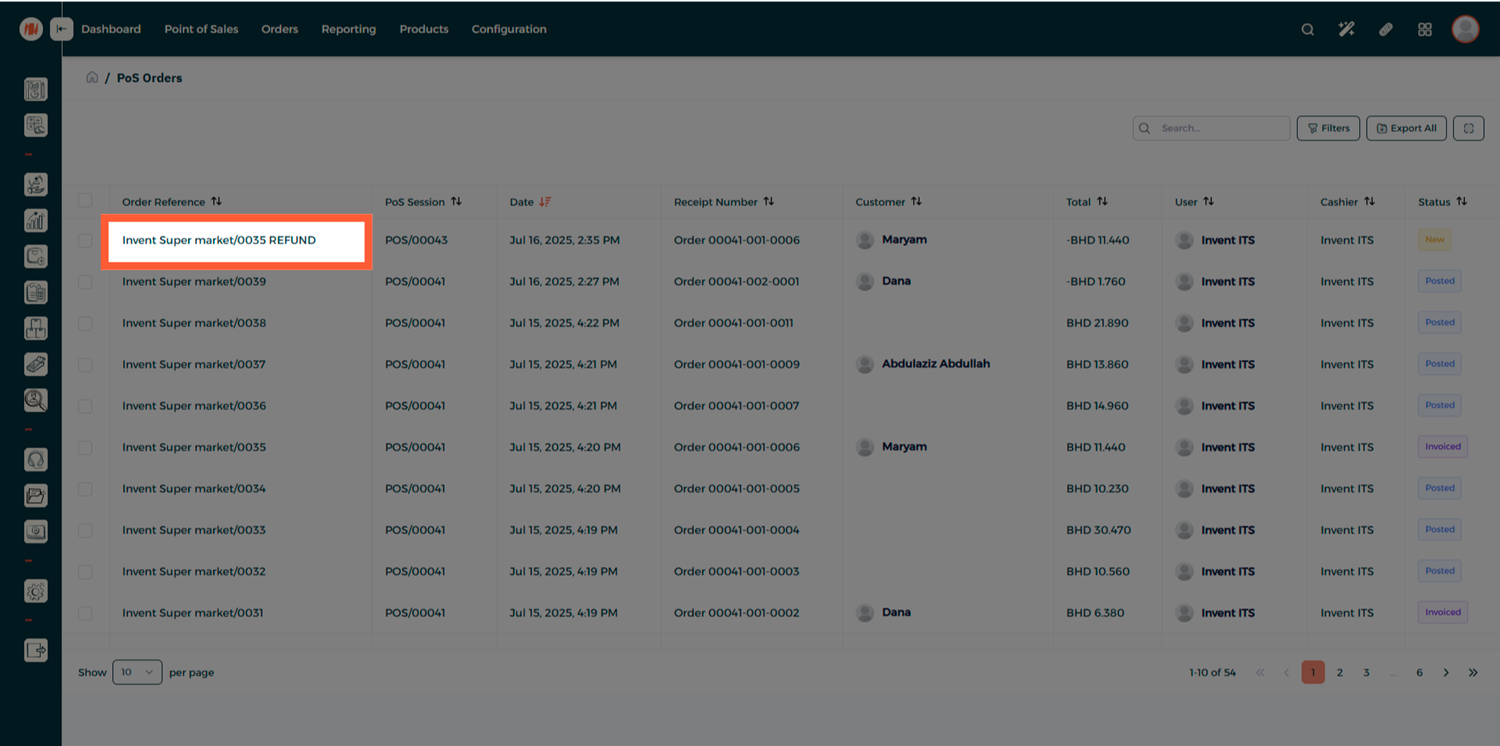
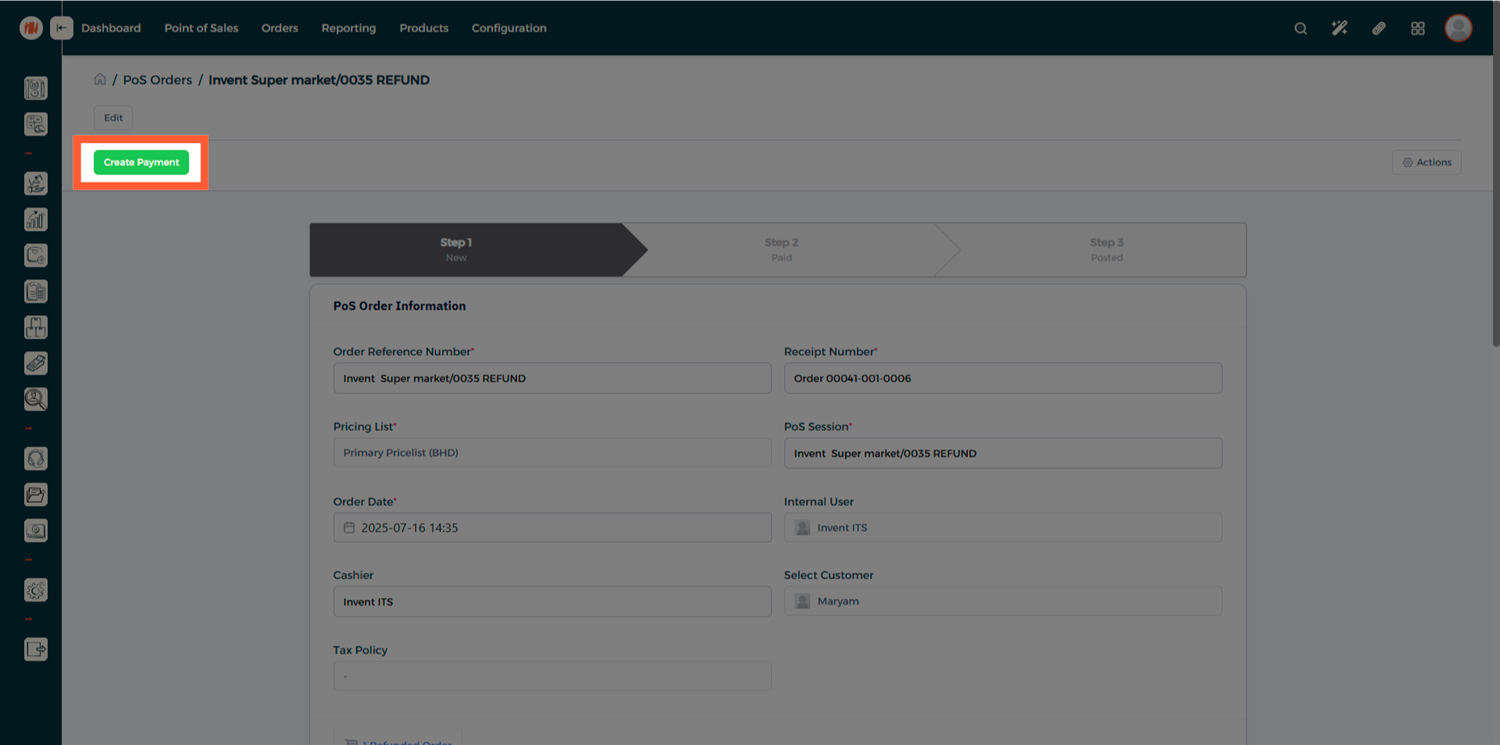
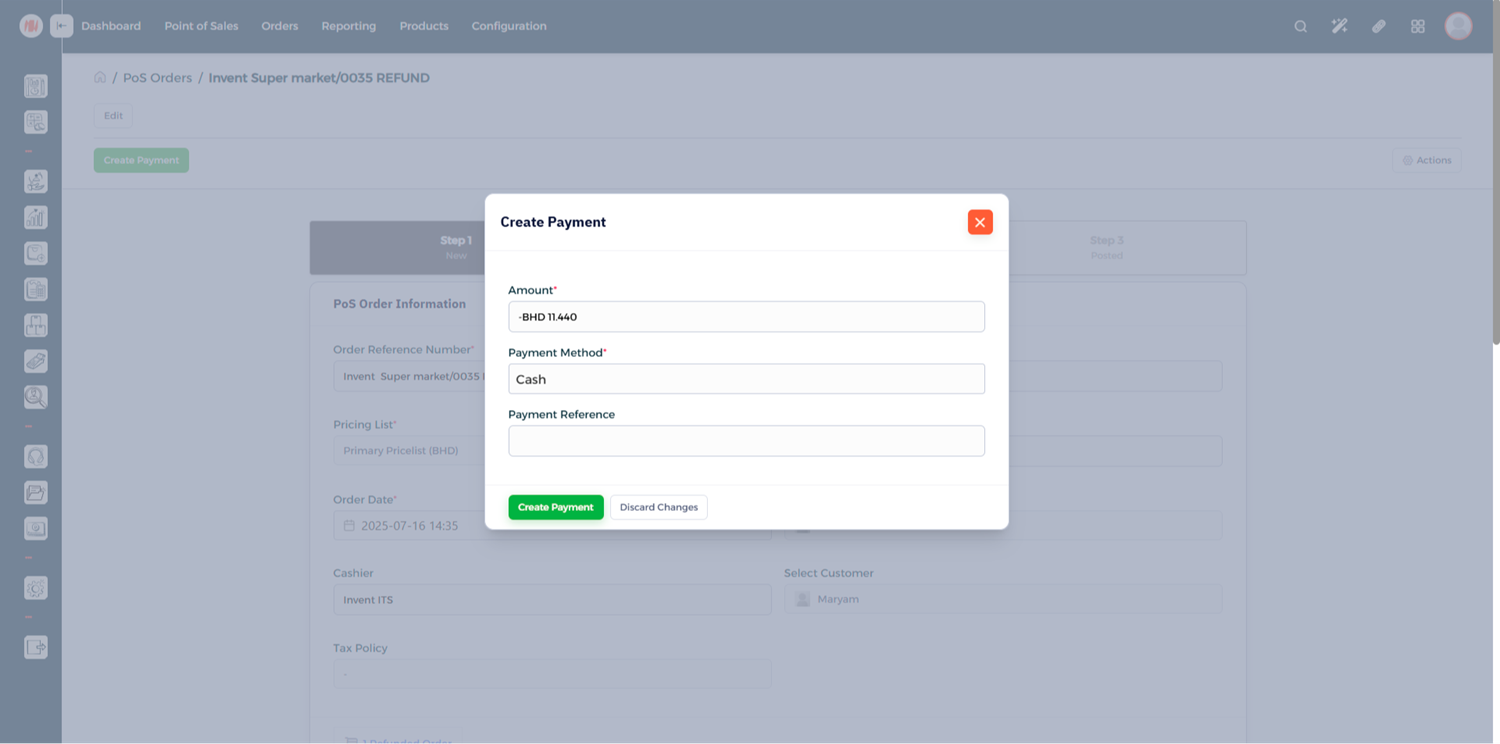
Step 3: Complete the Refund Payment
Open the refunded order and create the payment to finalize the refund
Notes & Tips
- Always confirm the original order status before issuing a refund to avoid duplications.
- Use the correct payment method for refunds.
FAQ
Q: Can I partially refund an order? Yes — adjust the quantity of the item to be refunded before clicking Refund.
Q: Will refunds update inventory automatically? Yes — refunds create the necessary stock and accounting entries so your inventory and financial records remain accurate.
Q: Can I refund a POS order created days ago? Yes — use the POS Orders list and the Create Refund action to refund closed or older orders.