How to Configure Cash, Card, BenefitPay, Digital Wallets, and Custom POS Payment Methods
Learn how to configure and manage multiple payment methods including cash, cards, digital wallets, and custom payment options.
Step-by-Step Process
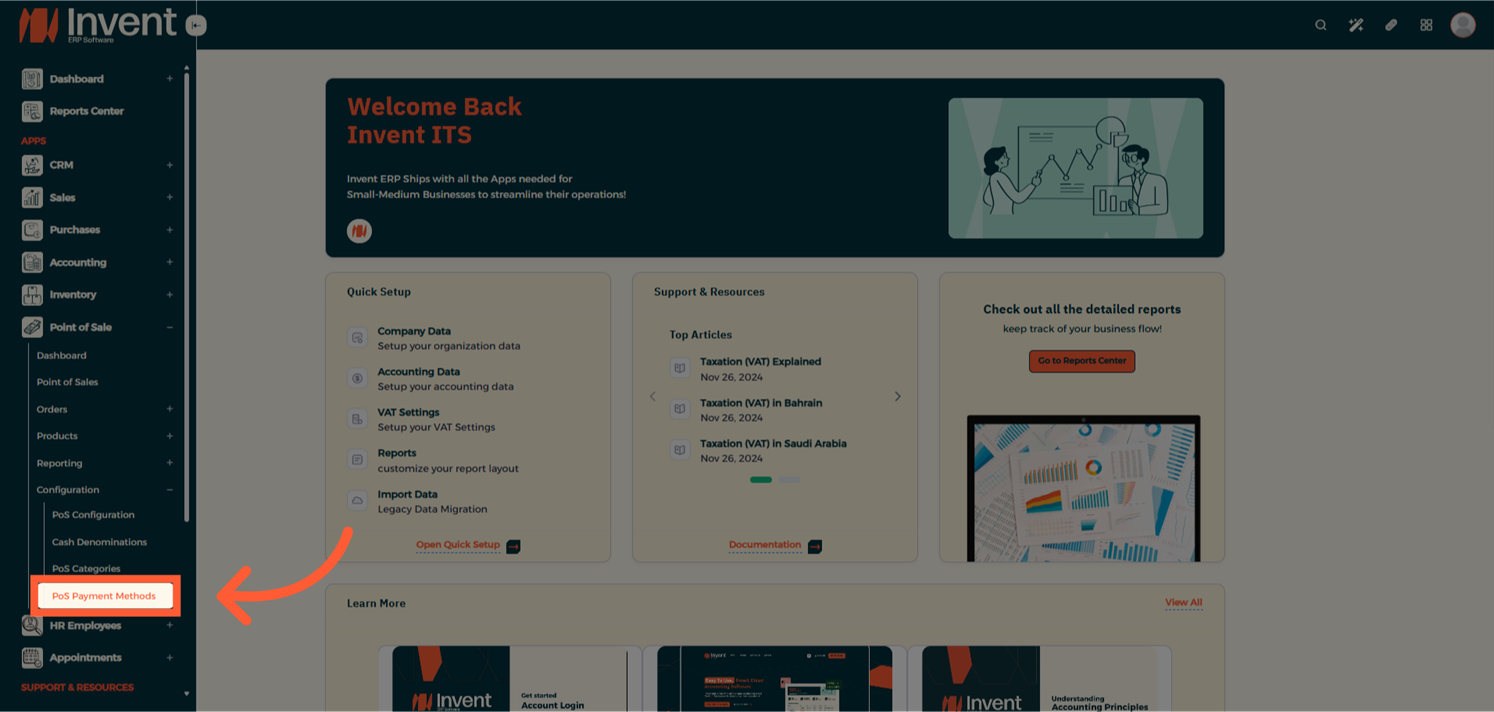
Step 1: Open POS Payment Methods
From the Main Menu, go to Point of Sale → Configuration → POS Payment Methods.
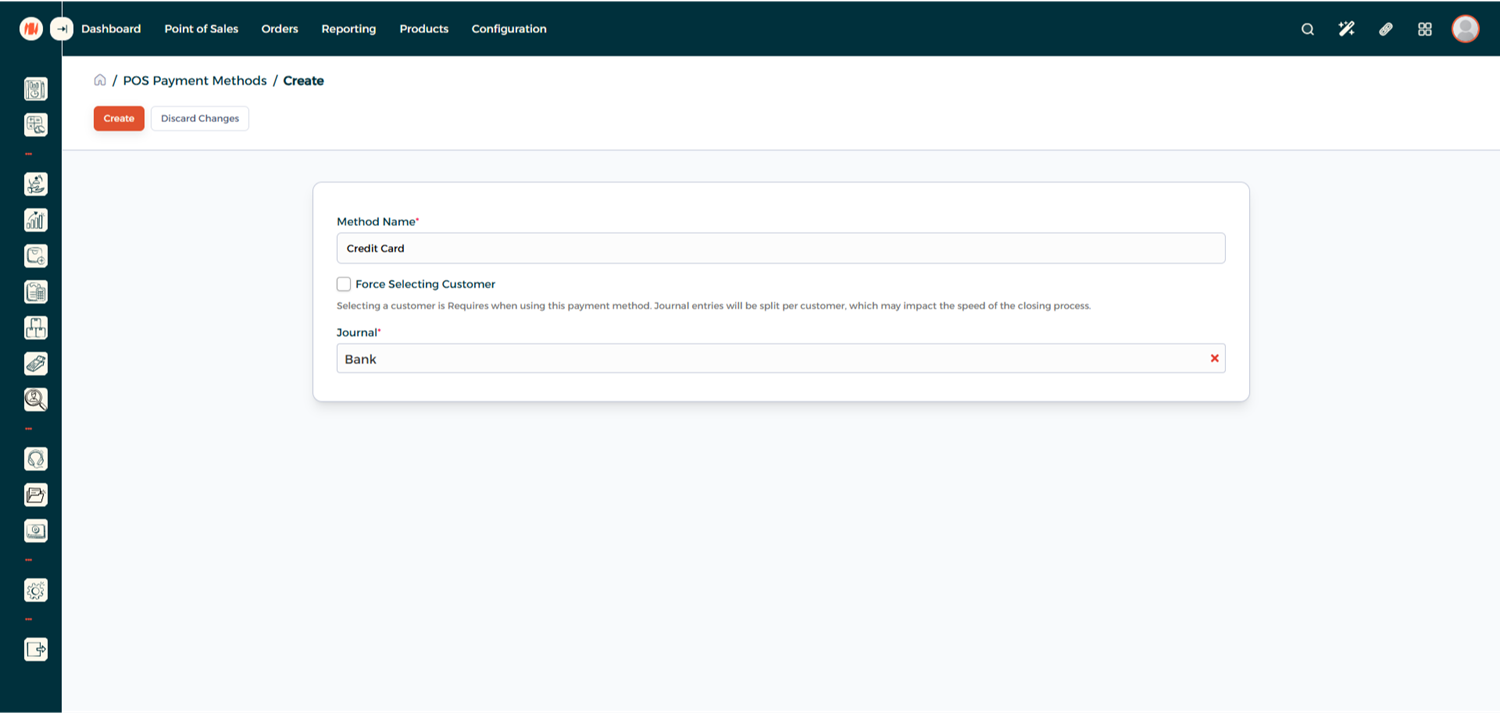
Step 2: Create a New Payment Method
From the Payment Method List Page, click on Add to create a new Payment Method.
- Method Name — Give your payment method a clear name.
- Force Select Customer — Require selecting a customer when using this method.
- Journal — Select the accounting journal where transactions will be recorded.
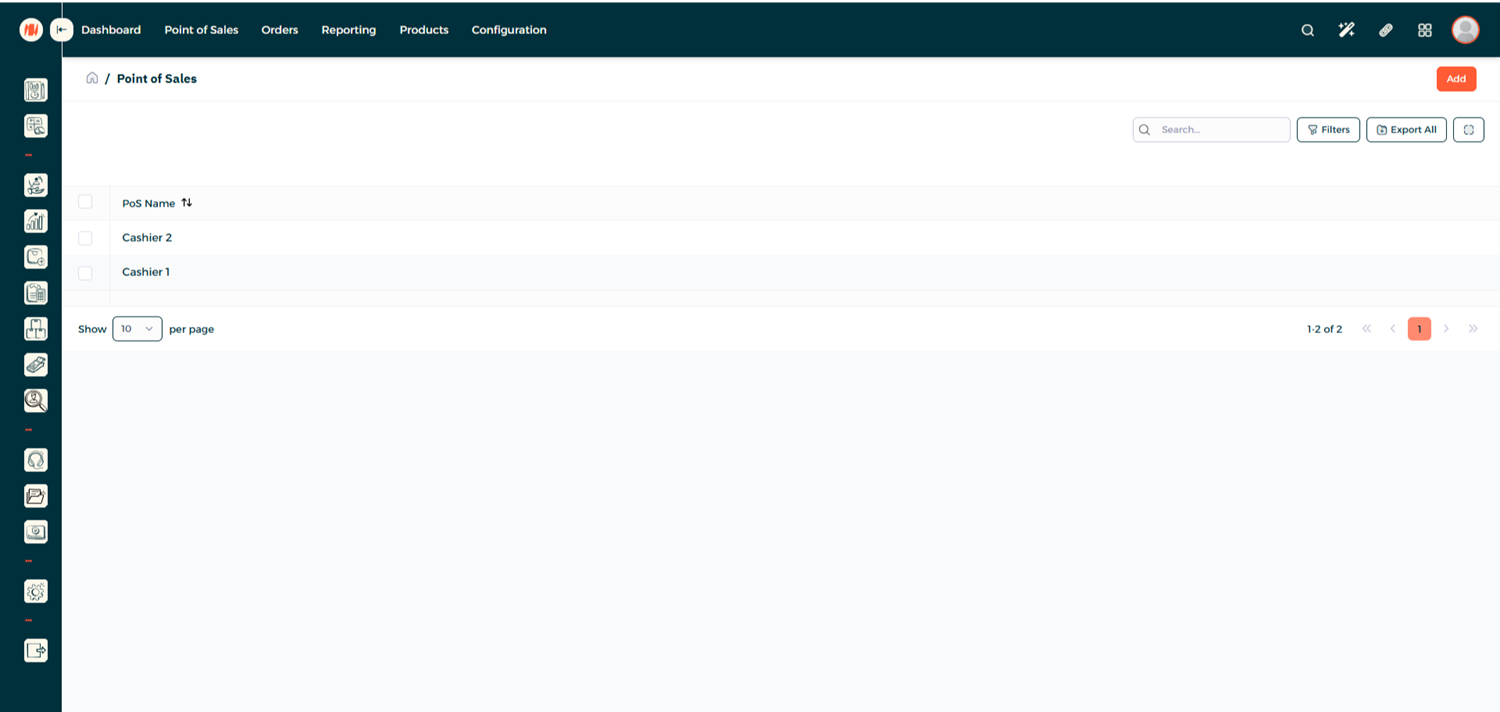
Step 3: Assign the Payment Method to a POS
From POS Configuration, open your desired POS
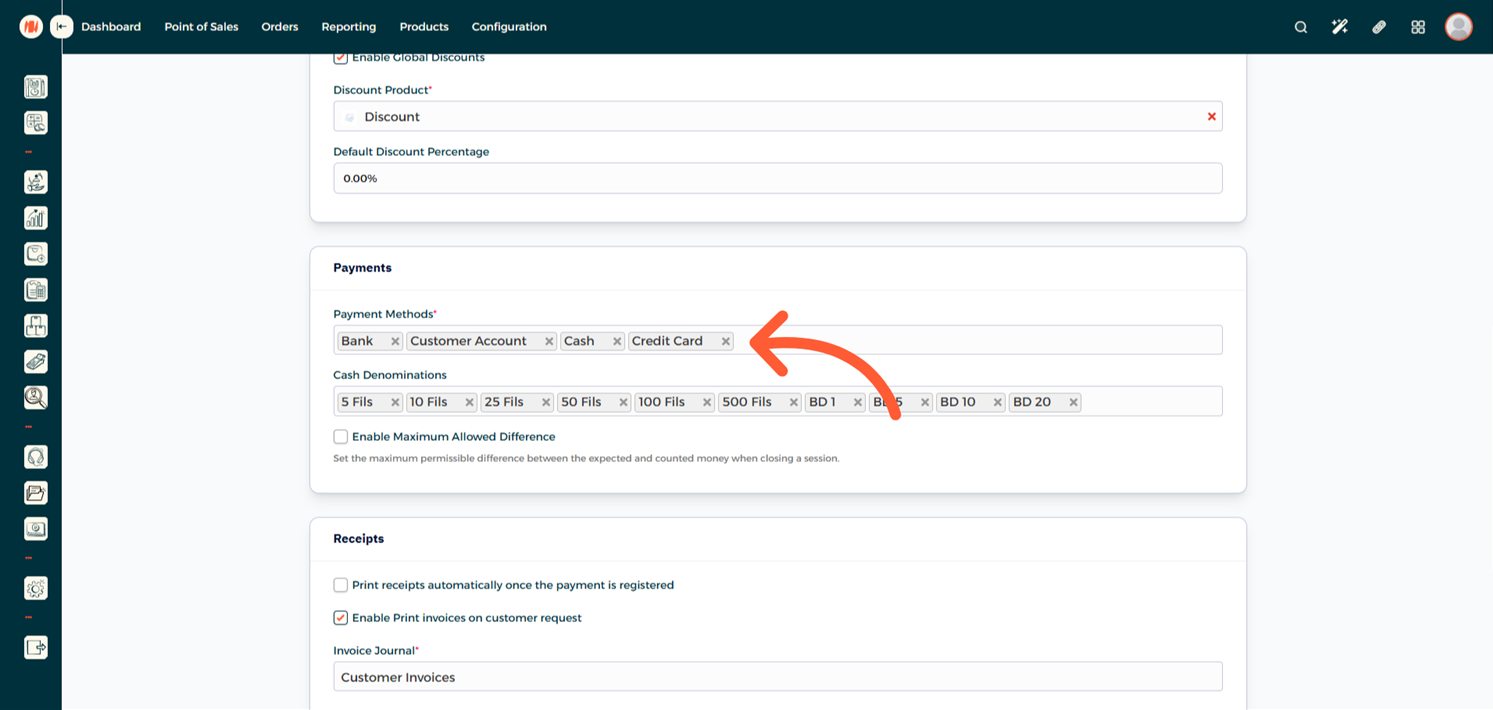
Scroll down to Payments, and add your Payment Method.
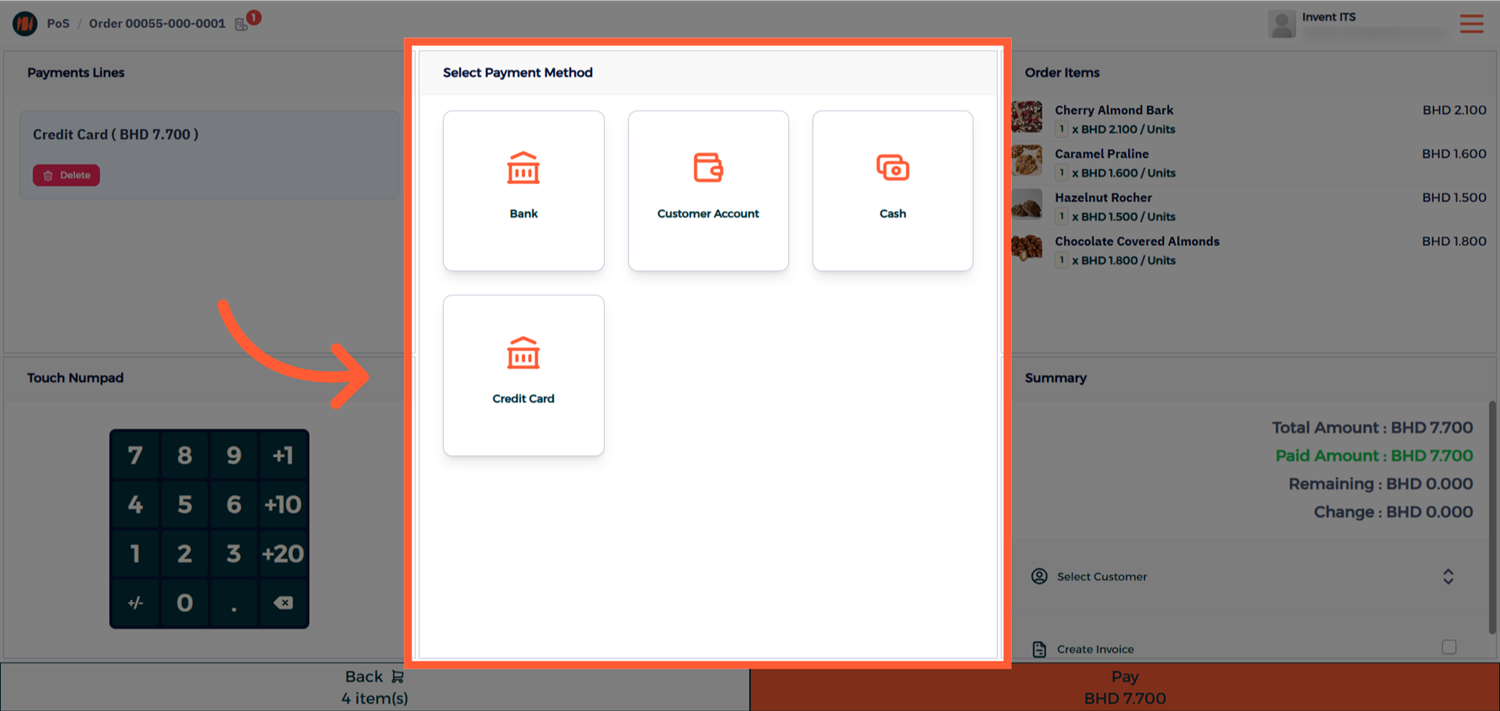
Step 4: View and Use your Payment Method
Now from your POS Session, you will be able to use your new Payment Method
Notes & Tips
- Choose the correct journal as the selected journal determines how the payment appears in accounting reports.
- Use clear, consistent name for the Payment Method to avoid confusion on the POS screen.
FAQ
Q: Can I set a payment method as the default? Currently, Invent ERP doesn’t allow setting a default payment method. Users can choose from the list during checkout
Q: Will disabling a payment method affect past transactions? No. Disabling only prevents future use; existing records and journal entries are preserved.
Q: Can I assign the same payment method to multiple POS sessions? Yes. You can assign a payment method to multiple POS configurations.