How to Generate and Print Product Barcodes for Inventory and Retail Operations
Learn how to create barcodes for products, improve inventory tracking, and streamline retail checkout processes.
Step-by-Step Process
Step 1: Create a Product Category with a Barcode Sequence
From the Main Menu, go to Sales → Product → Product Categories.
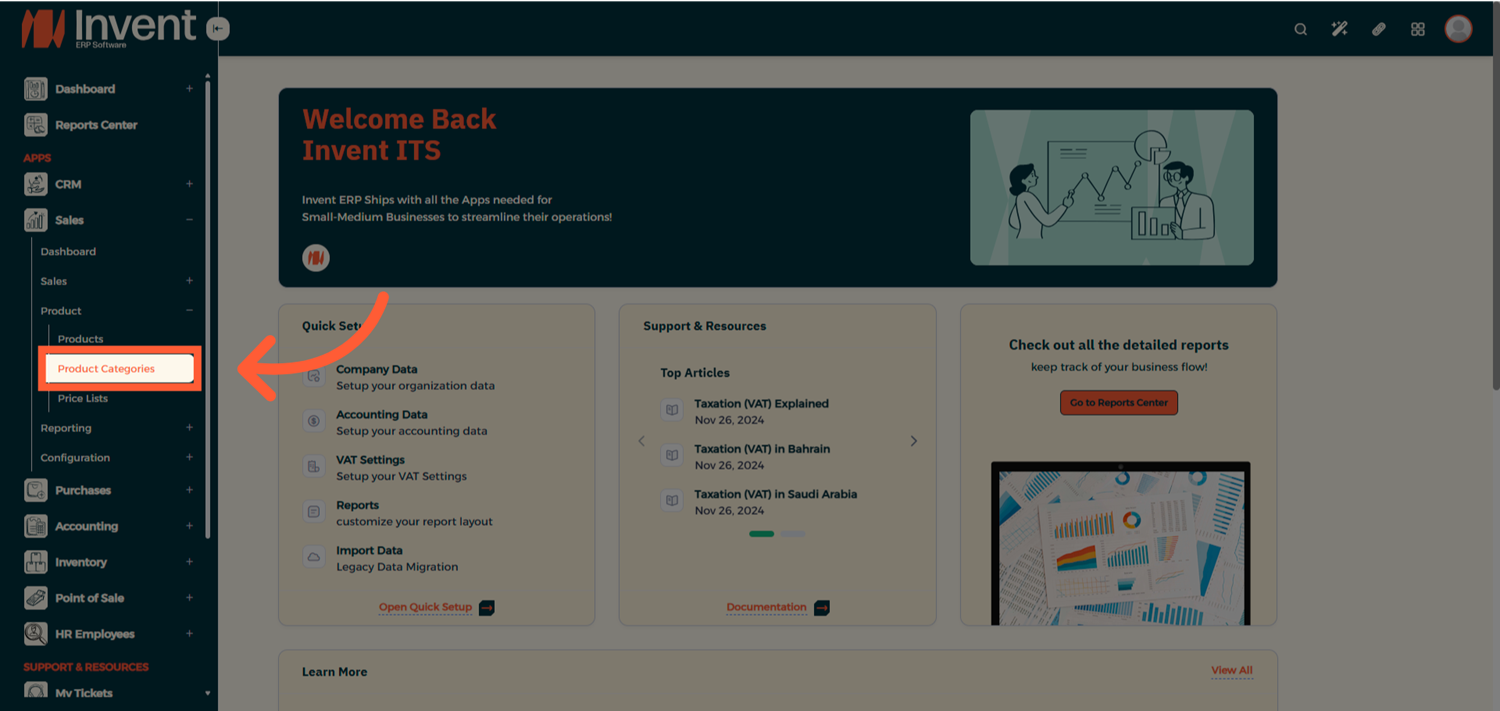
Step 2: Create a New Product Category
From the Product Category List page , click Add to create a new Category
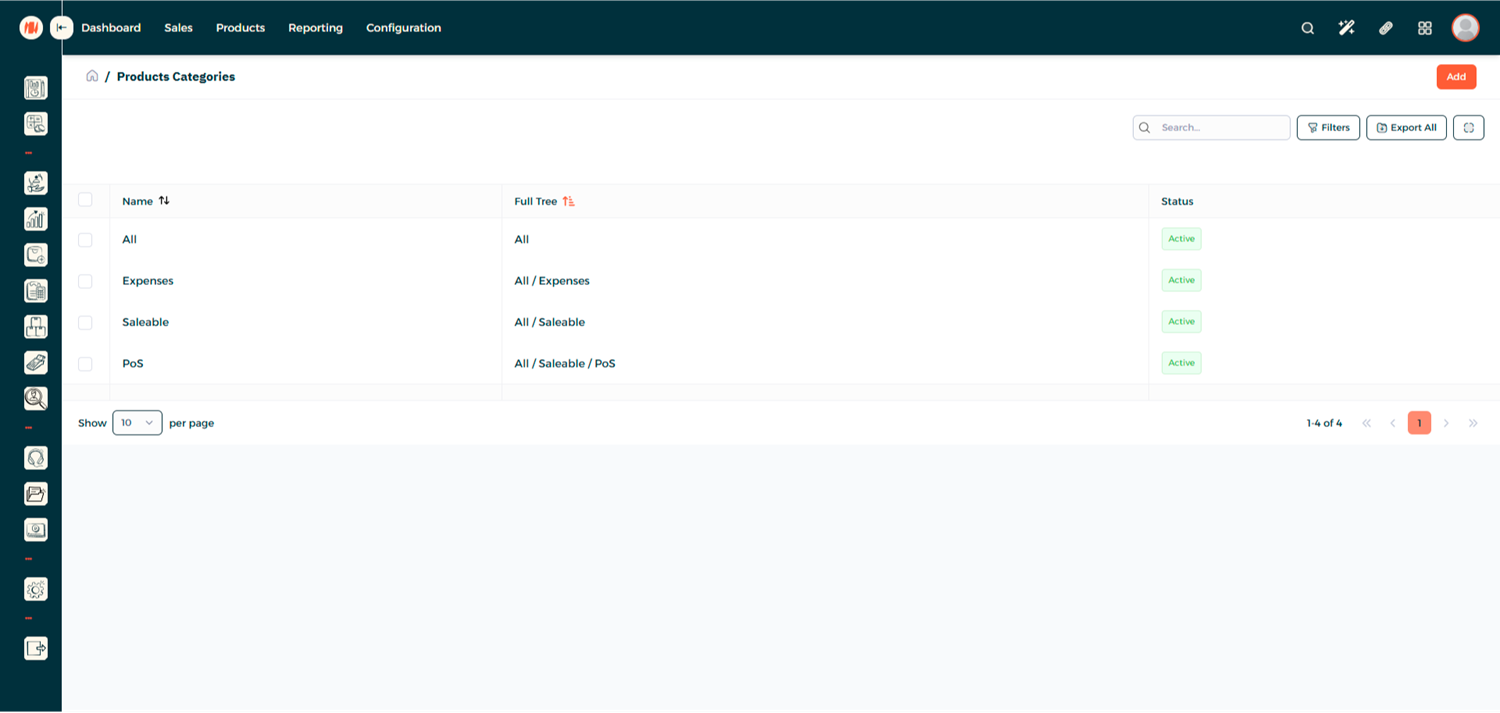
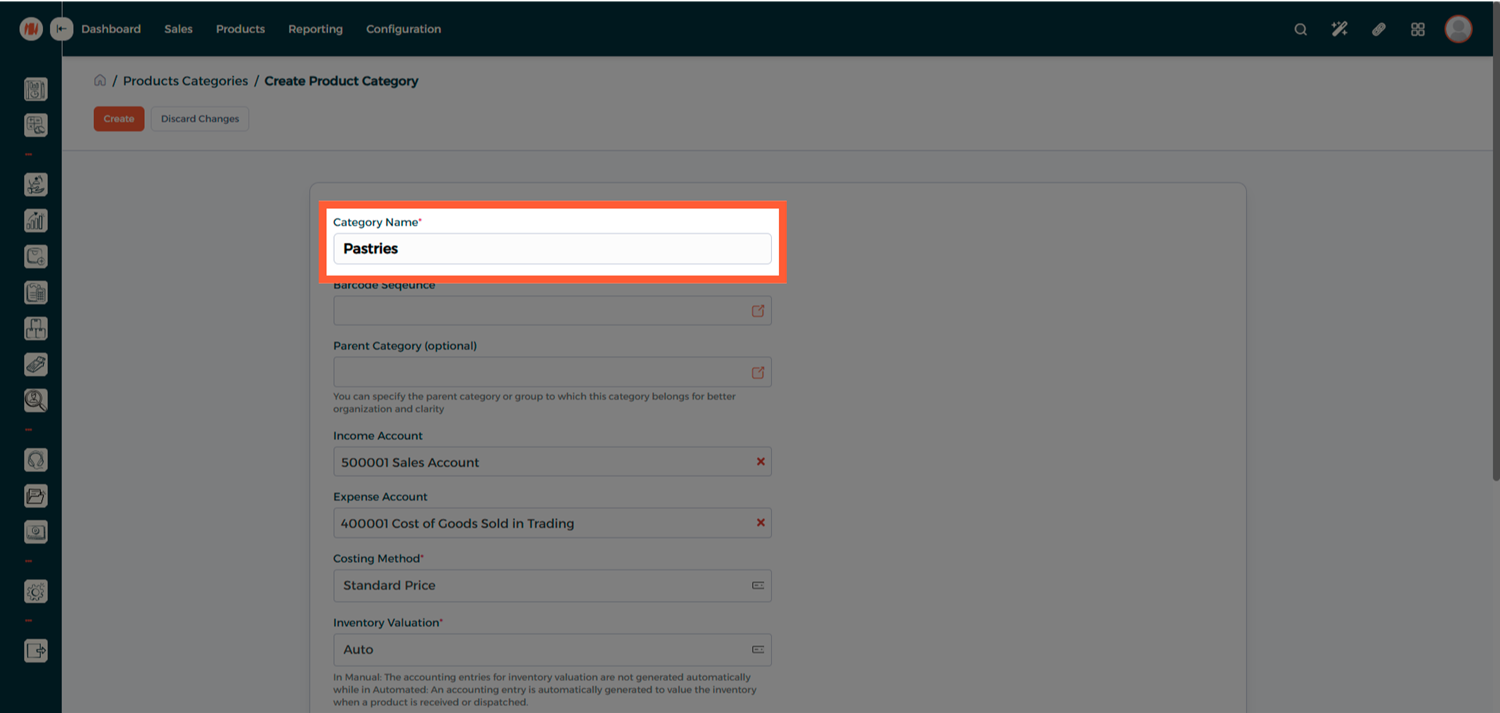
Step 3: Configure the Category Barcode Sequence
Start filling in your product category details
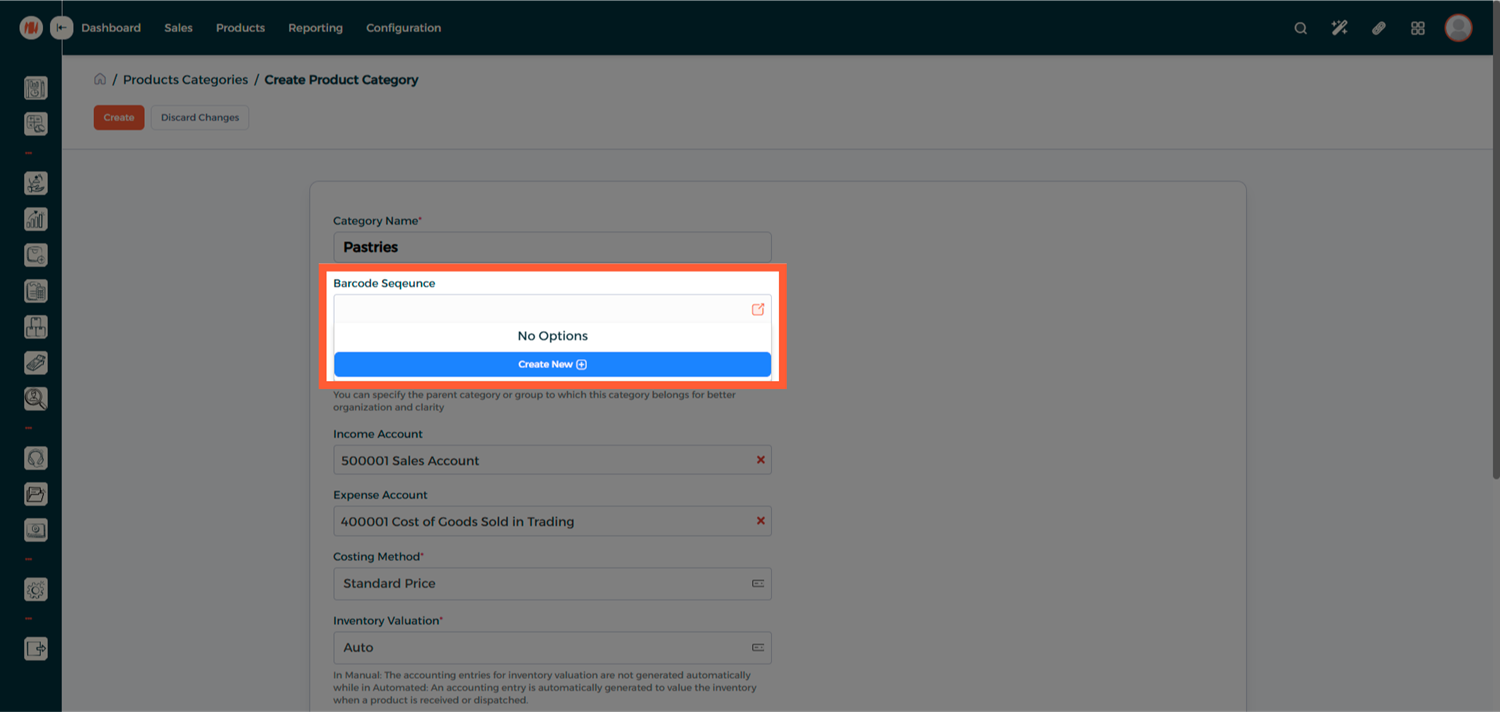
Create a new Barcode Sequence
Add a Prefix to define how barcodes will be generated and then click Save
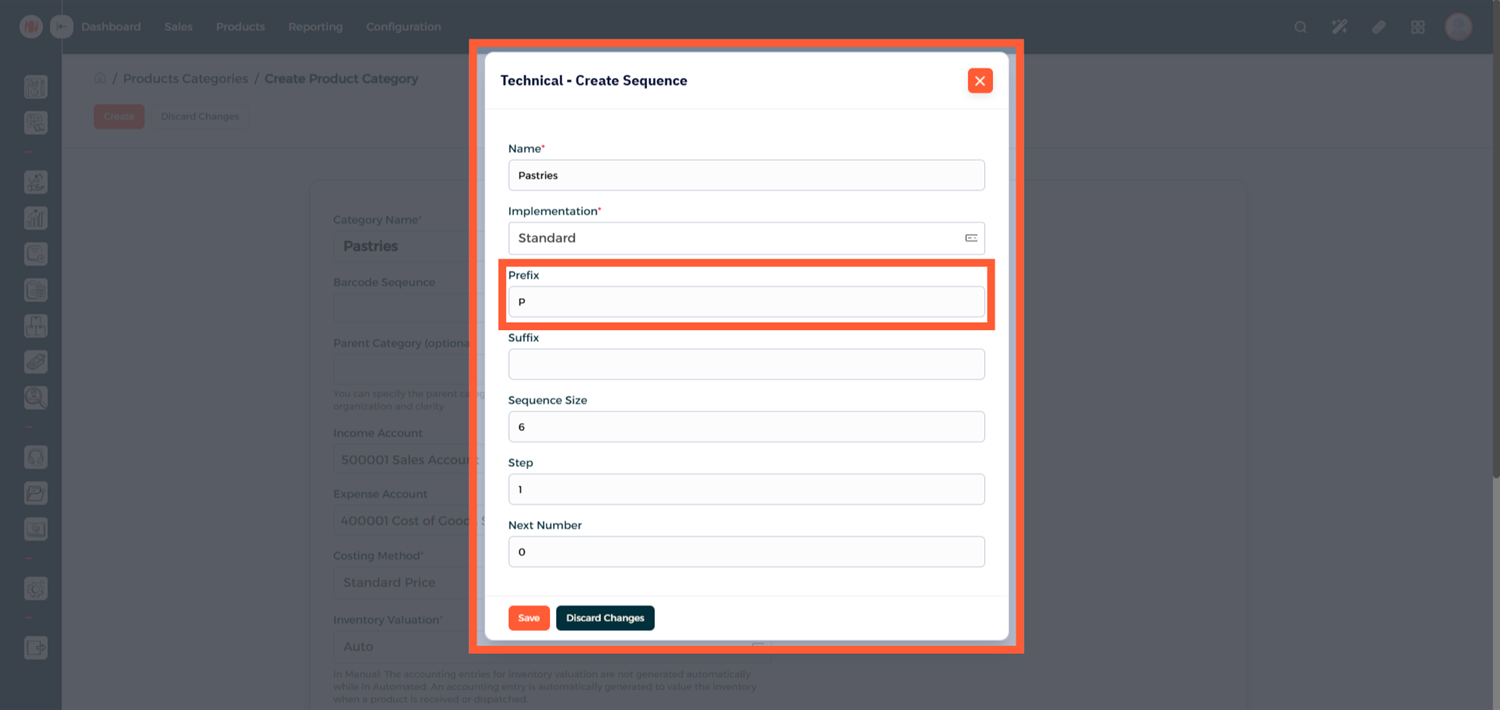
Step 4: Create the Category
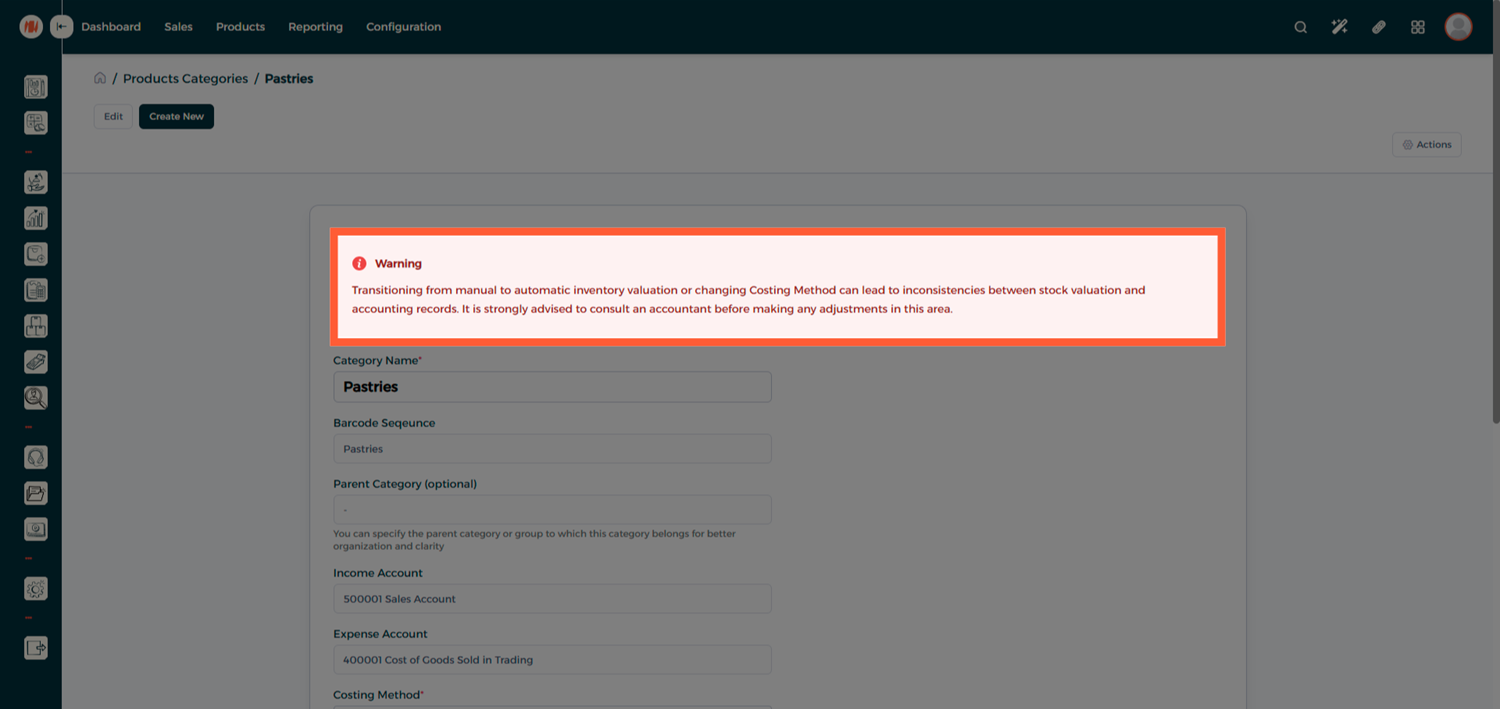
Avoid switching between manual and automatic inventory valuation or changing the costing method, as this may cause inconsistencies between stock valuation and accounting records.
Step 5: Create a New Product
Navigate to the Product page and click on Add to create a new product
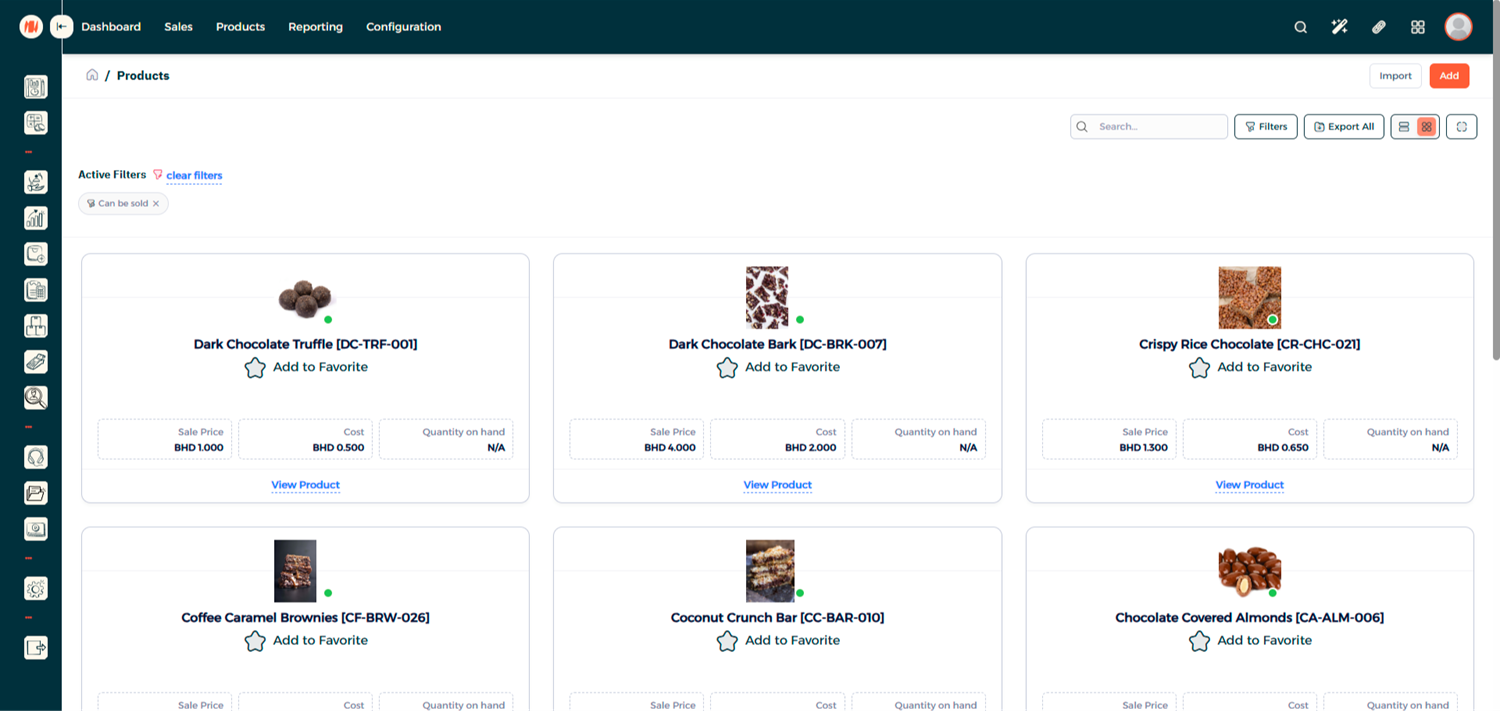
Step 6: Assign the Product Category
Fill in the product details and make sure to select the Product Category you created
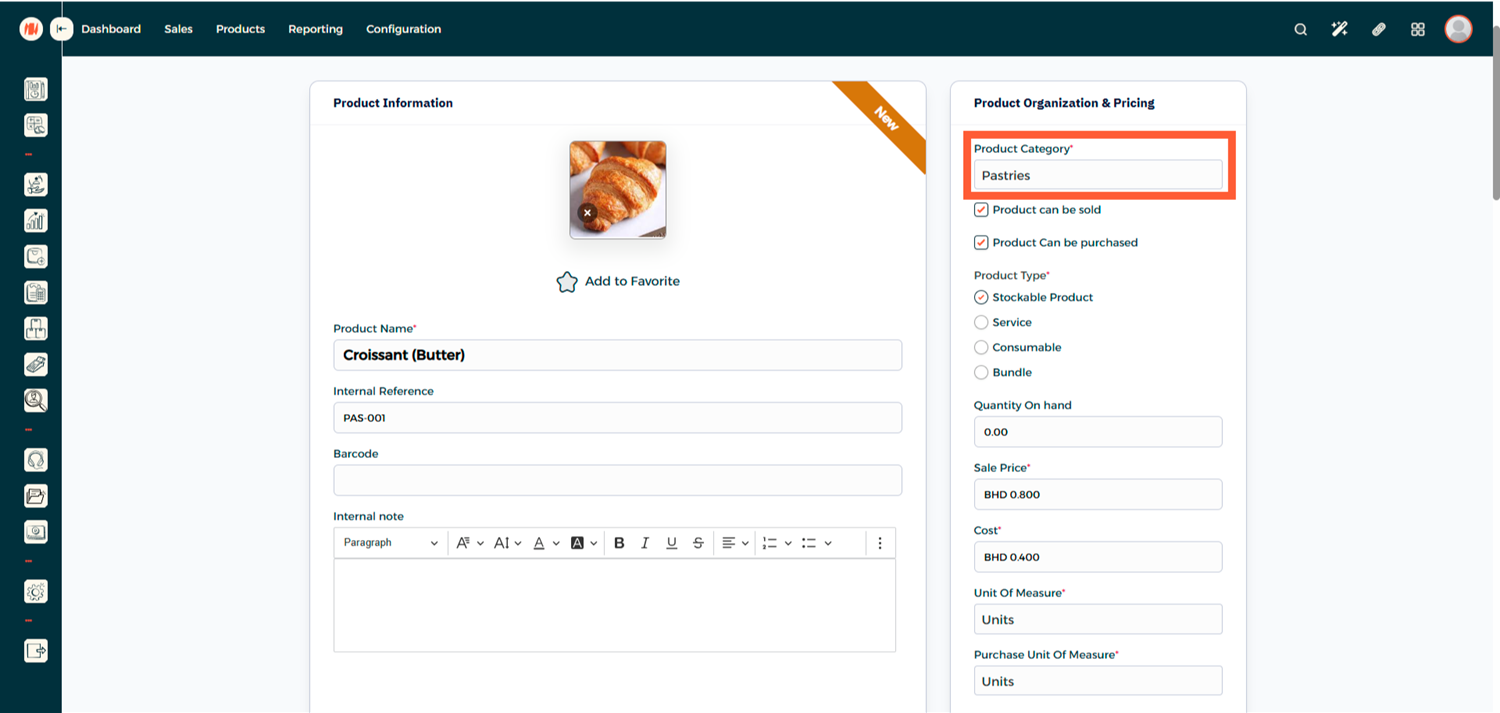
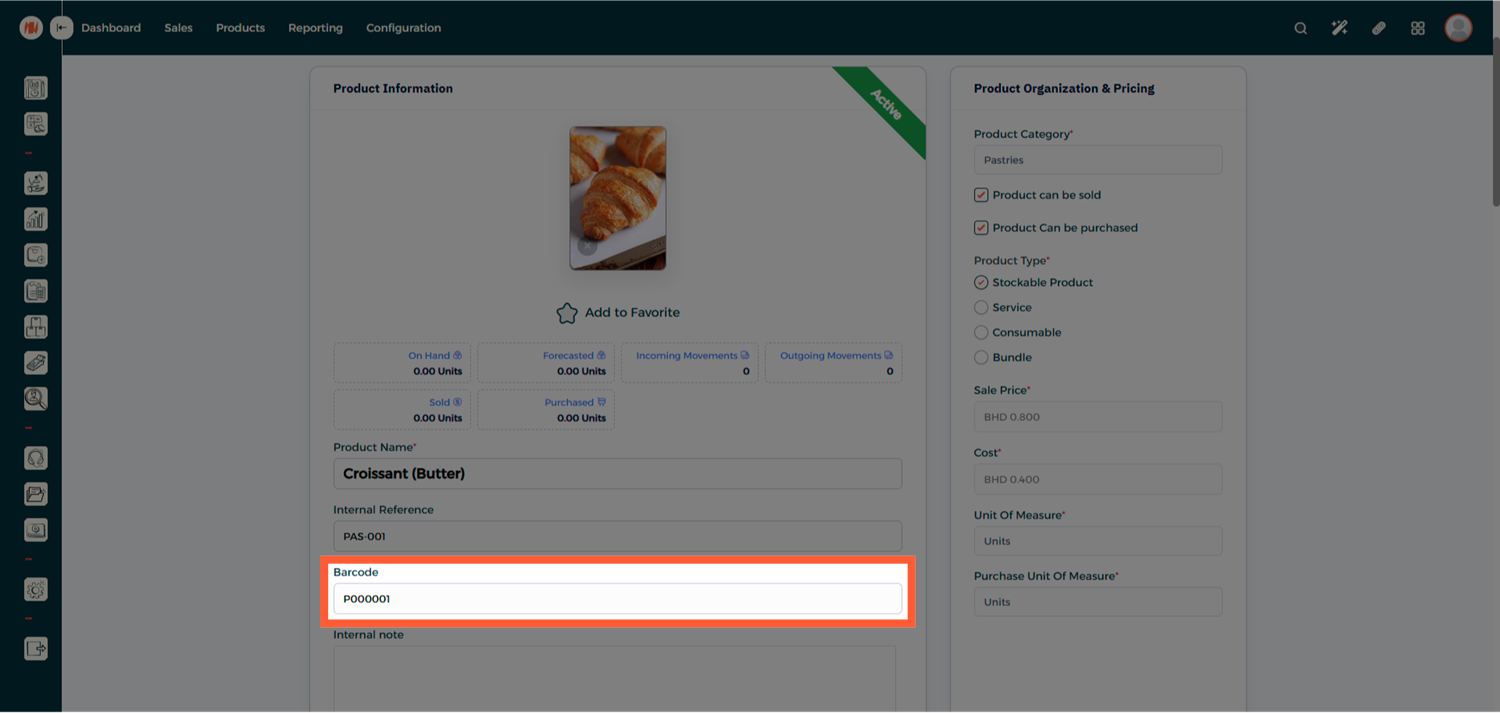
Step 7: Confirm Automatic Barcode Generation
Once the product is created, the system will automatically generate and display the barcode sequence for the product
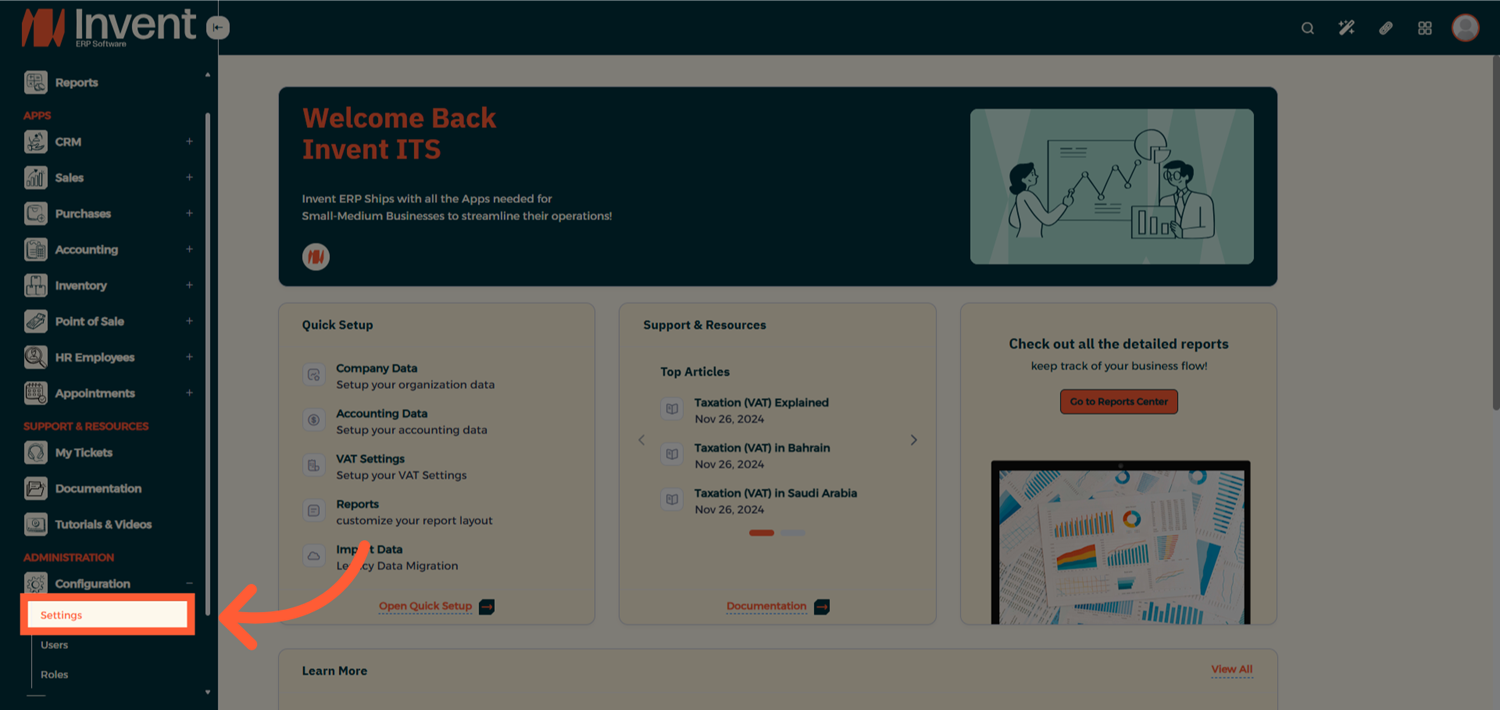
Step 8: Enable VAT in Barcode Printing (Optional)
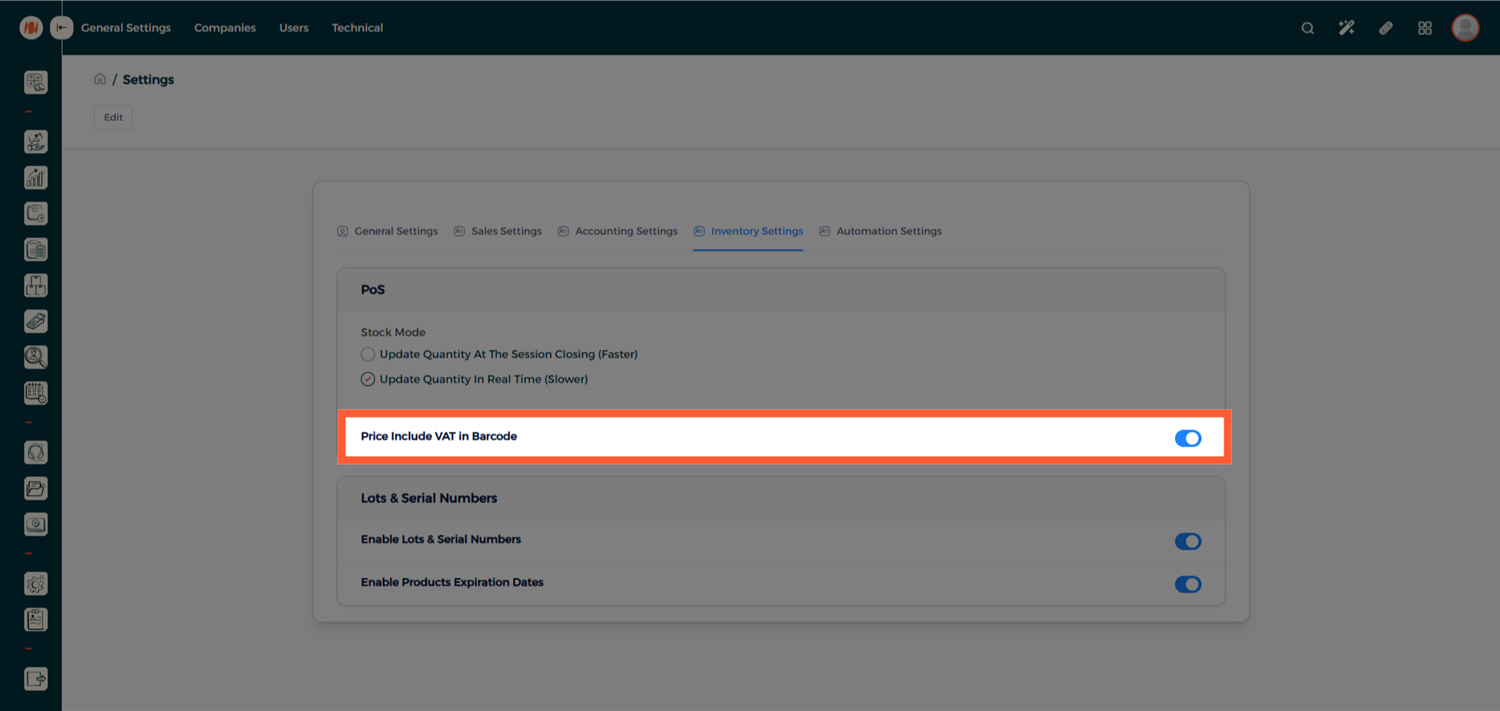
By default, barcodes are generated without including the VAT amount in the printed price. If you want your barcodes to display prices including VAT, you can enable this option from the system settings. Navigate to Configuration → Setting
Go to Inventory Settings and Enable the option “Price Include VAT in Barcode”
Notes & Tips
- Always create and configure the barcode sequence at the category level before adding products to ensure consistent barcode generation.
- Use a clear and meaningful prefix in your barcode sequence to easily identify product groups.
FAQ
Q: Is the barcode generated automatically for every product? Yes, once a product is assigned to a category with a configured barcode sequence, the barcode is generated automatically upon product creation.
Q: Can one product category have more than one barcode sequence? No, each product category can have only one barcode sequence.
Q: Will barcode work in Point of Sale (POS)? Yes, generated barcodes can be scanned and used directly in the POS for fast and accurate product selection.